MagicLight for Educational Story Videos: A Practical Production Workflow
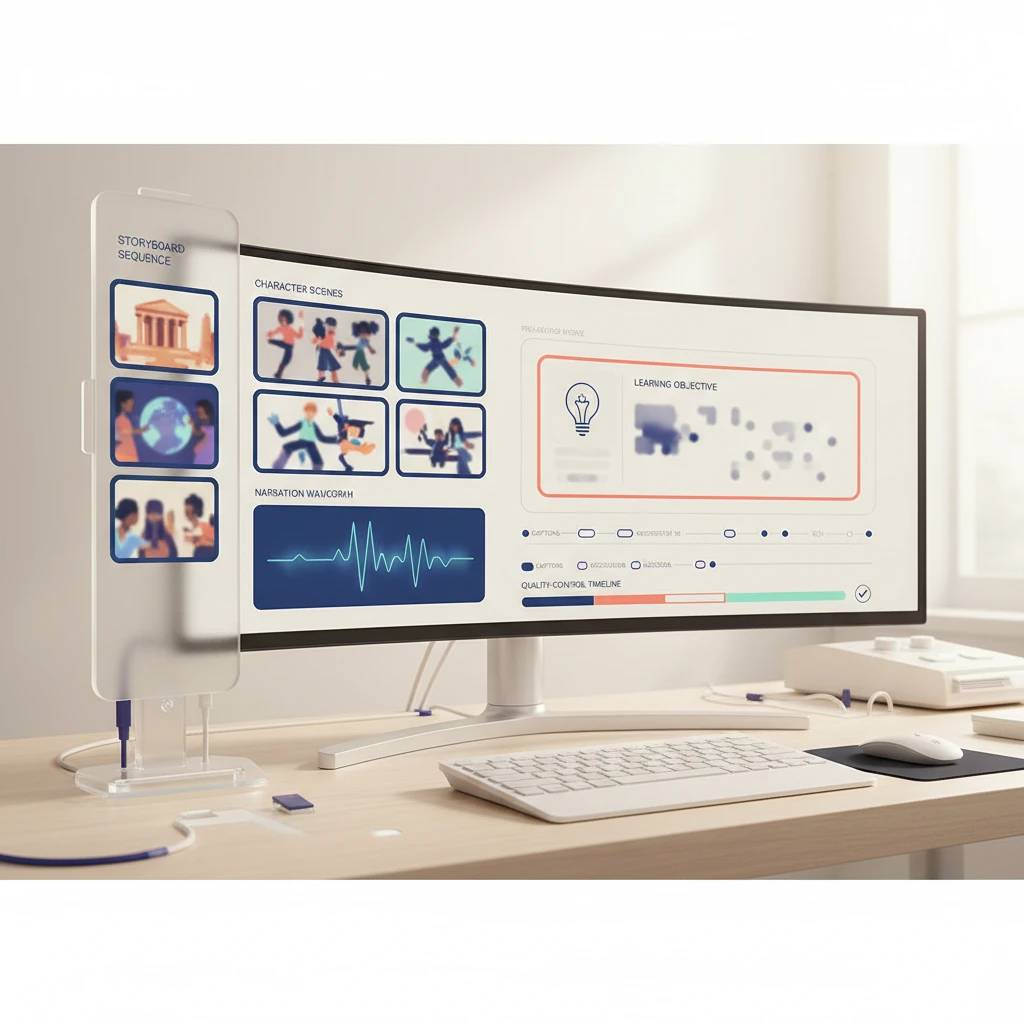
Affiliate disclosure: This article contains a sponsored affiliate link to MagicLight. If you sign up or buy through it, BigExclusives may earn a commission at no additional cost to you. Our assessment is based on publicly available product information and a proposed evaluation workflow, not a hands-on test. Read our Affiliate Disclosure for details.
A short clip can introduce an idea. A useful educational story has a harder job: it needs a beginning, a sequence of understandable scenes, a consistent visual language, and an ending that actually teaches something. MagicLight positions itself as an AI video creation platform for turning stories, scripts, and text into multi-scene video. The interesting question for an educator or creator is not whether a prompt can produce moving pictures. It is whether the resulting sequence can carry a lesson without confusing the audience.
This guide lays out a careful way to plan a story-led explainer with MagicLight, assess what the platform claims, and decide when human editing remains essential. If your goal is a marketing campaign rather than an educational story, see our Higgsfield campaign-visual brief workflow for a different evaluation checklist.
What MagicLight is—and what it is not
On its official site, MagicLight lists story-to-video, text-to-video, script-to-video, image-to-video, subtitle, voice, and editing tools. It promotes long-form creation and story templates for lessons, explainers, and children’s stories. These are vendor-described capabilities, not independent performance findings. Availability, model access, output duration, credits, and export terms may vary by plan and change over time; check the live product and terms before committing.
Think of the platform as a potential production workspace, not a substitute for a lesson plan. A plausible video can still contain an incorrect example, unreadable on-screen text, inconsistent characters, or pacing that loses a learner. The creator remains responsible for factual accuracy, permissions, and age-appropriate presentation.
Start with one learning outcome
Suppose you want a two-minute explainer about why a password manager is useful. The goal is not “make a beautiful cybersecurity video.” A better learning outcome is: “After watching, a beginner can explain why unique passwords matter and identify one safe next step.” That makes the script and the final review much easier to judge.
Write down the audience, one claim to teach, one misconception to avoid, and a single action viewers can take. For this example, avoid showing real credentials or implying that any product makes an account impossible to compromise. If the topic involves health, law, finance, or safety, have an appropriate subject-matter reviewer check the material before distribution.
Build a scene-by-scene brief before generating
A practical first draft can be six scenes: a familiar problem, why it happens, a clear explanation, an illustrated contrast, a safe action, and a recap. Keep each scene to one visual idea and one spoken idea. Here is an illustrative brief, not a claim about a specific MagicLight output:
- Problem: A character reuses one password across unrelated accounts.
- Consequence: Show the risk conceptually without depicting a real breach or identifiable data.
- Explanation: Unique passwords limit the damage if one account is exposed.
- Tool concept: A password manager helps create and store distinct credentials.
- Action: Start with the most important accounts and enable multifactor authentication where available.
- Recap: One account, one unique password, plus an additional verification step.
Ask for a calm, accessible tone and consistent character descriptions across scenes. Describe the setting and color palette rather than relying on brand names or copyrighted characters. Specify that any on-screen words should be minimal and checked manually. If a generated frame misstates the concept, revise the script and regenerate that segment rather than hiding the mistake with a caption.
A production workflow worth testing
1. Choose the starting format
MagicLight advertises several entry points, including a story, text, and a script. For instructional work, a reviewed script offers more editorial control than a vague one-line prompt. If the interface presents templates, use one for structure only; do not allow it to dictate facts or the audience’s reading level.
2. Draft narration and scene descriptions separately
Put spoken language in one column and the intended visual in another. Read the narration aloud. Remove claims you cannot substantiate, simplify long sentences, and allow enough time for the viewer to process each idea. Where an illustration might look like a real interface, mark it as conceptual unless it accurately represents the product being discussed.
3. Generate a small sample first
Before attempting an entire story, produce a short segment, if the current plan and interface allow it. Check whether the character appearance, scene transitions, voice pronunciation, captions, and editing controls suit your purpose. A free trial or preview can reveal more about your workflow than a feature list; confirm current trial limits and commercial-use terms on the vendor site.
4. Review the exported result, not just the editor preview
Watch on a phone and a larger screen, with sound on and off. Are captions legible? Does the narration match the scene? Are there odd hands, objects, or labels? Is the final action understandable without the creator explaining it afterward? Obtain permission for any source images, music, likenesses, or cloned voices. Do not upload a person’s voice or image without appropriate consent.
Where MagicLight could be useful
Its combination of story-oriented templates and video tools could appeal to creators making illustrated explainers, narrative lesson introductions, or concept prototypes. A teacher might draft a visual analogy, then use the result only after checking every claim and confirming that the imagery is appropriate for students. A solo creator might use a short sample to test visual pacing before investing in a longer production.
Those are potential uses, not evidence that the platform will automatically deliver a polished finished video. The official site’s maximum-length and continuity claims deserve validation with your own material, plan, and export settings.
Limitations and decision points
- Accuracy: Attractive visuals do not verify narration or on-screen facts.
- Consistency: Examine character identity, setting, lighting, and chronology across multiple scenes rather than a single promotional clip.
- Control: Determine whether you can edit an individual scene without rebuilding the project.
- Rights and privacy: Read the terms for generated assets, uploaded scripts, voices, and commercial use.
- Cost: Compare the current credit or subscription limits with your expected revisions and exports. We do not assume a particular price or allowance here.
- Accessibility: Review captions, contrast, audio clarity, and alternatives for viewers who cannot follow visual-only information.
For a broader purchasing framework, see our existing guide to choosing an AI tool before subscribing. Its general checklist complements this video-specific production test.
A sensible next step
Prepare a short, reviewed script and a six-scene brief. Then explore MagicLight through our affiliate link to see whether its current workflow fits that precise task. Confirm the live plan terms before entering payment details. Keep your source script, check the output carefully, and retain a non-AI production route if the tool cannot meet your quality standard.
Bottom line: Story-led AI video is most promising when the lesson is already clear. Let generation help visualize a thoughtful script—not decide what your audience should learn.